
How to manage your Multipass
In the Multipass section of the app, at the bottom of the map, you'll find all the passes you've purchased. They're shown in a horizontal card list and are organized by license plate and parking.
This means that:
- On each card you'll see all available passes linked to the same license plate and the same parking.
- If you have Multipass for two different vehicles in the same parking, you'll see a different card for each license plate.
Example:
If for the same parking and license plate you buy a Multipass 5 and later a Multipass 10, the app will show a total of 15 available passes for that parking and that license plate.
Pass status
- When you have available passes that haven't expired, they'll appear as "Available" in green.
- When you don't have available passes (due to use, expiry or license plate change) they'll appear as "Not available" and will remain visible in the app for 3 months, for informational purposes only.
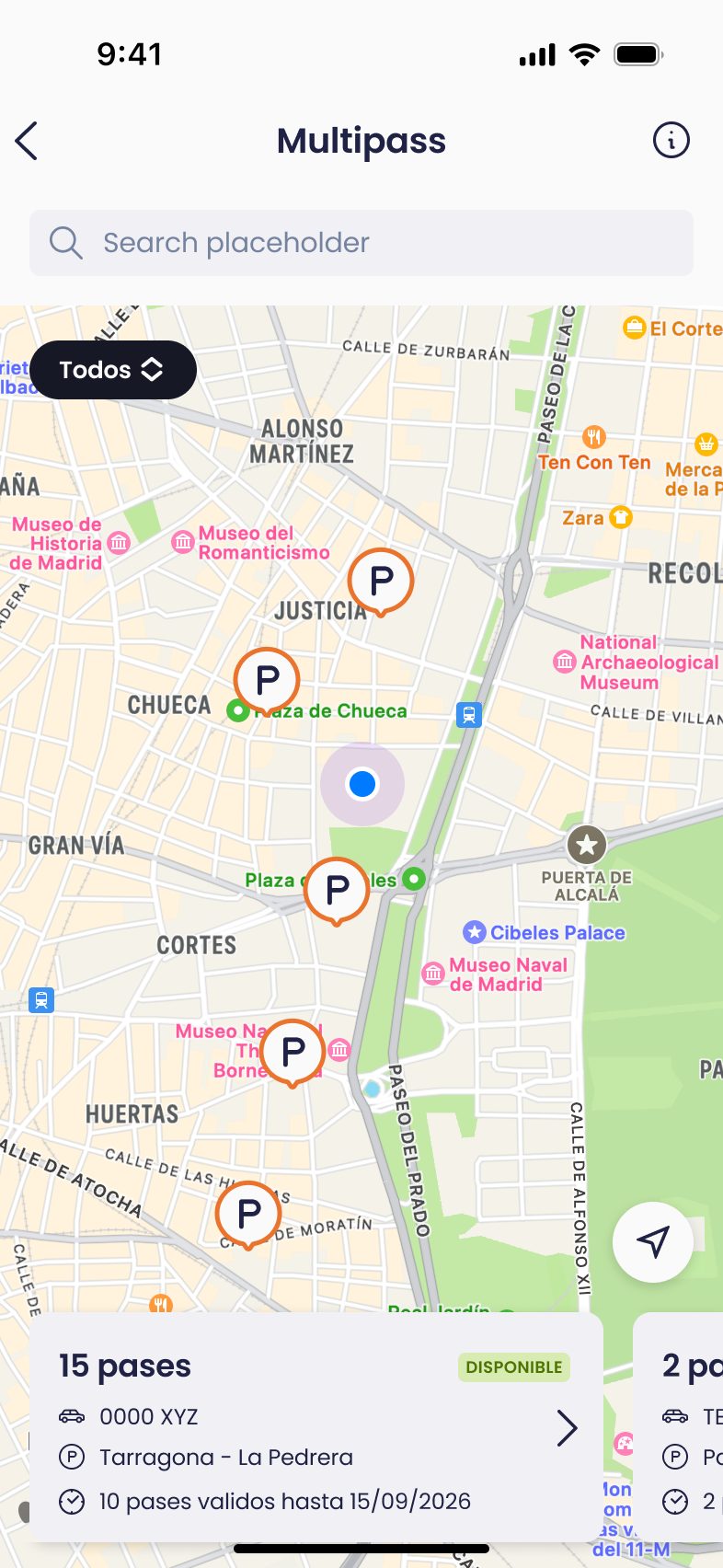
On each Multipass card you'll also see information about whether any of your passes is about to expire.
Keep in mind that passes have a validity of one year from the purchase date and that the ones expiring sooner are always used first.
Your pass details
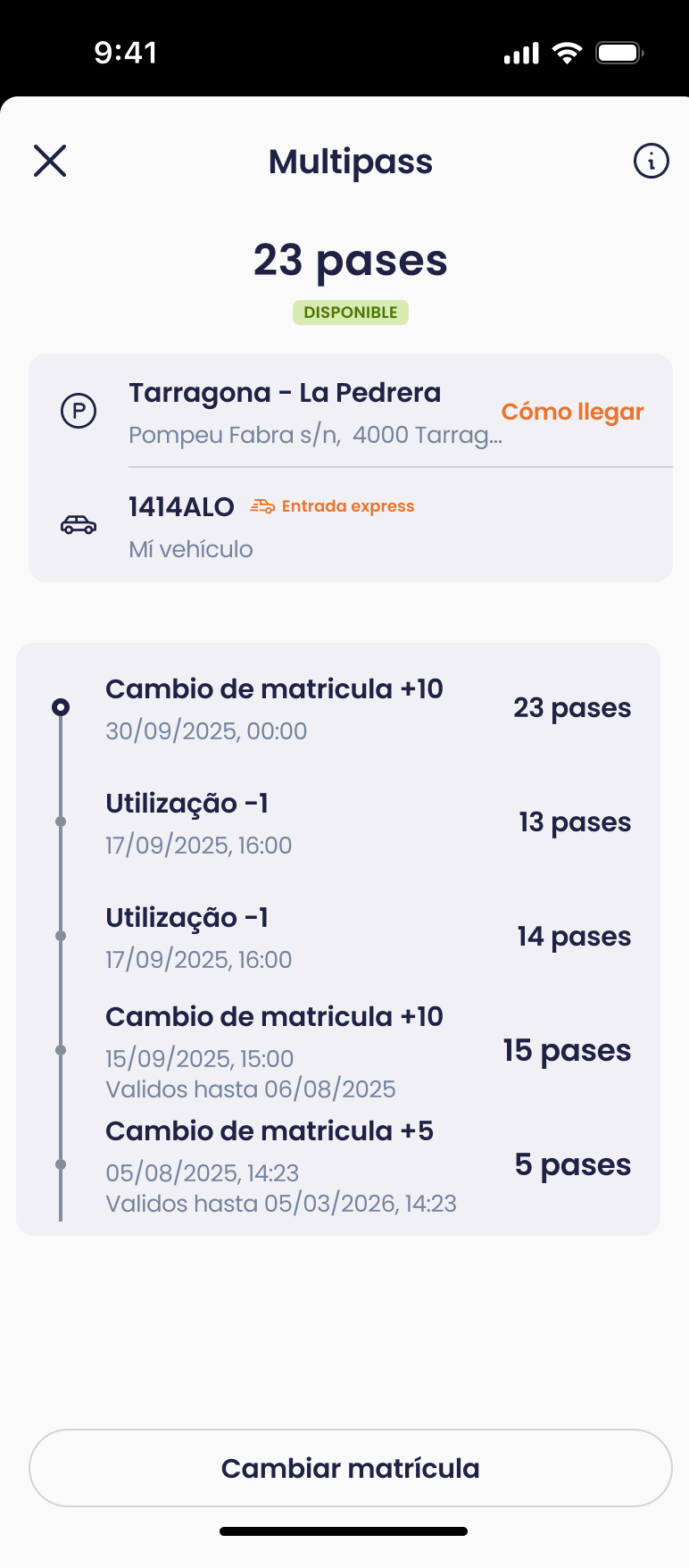
By tapping on a Multipass card you'll access the details screen, where you can check:
- The parking where the Multipass can be used
- The license plate it's assigned to.
- A history of movements with information about:
- When you bought the Multipass
- When the passes expire
- Use of the passes
- License plate changes made
From this same screen you can also change the license plate and assign the passes to another vehicle easily.
If you change the license plate assigned to your passes, a new card will be created for that parking with the new license plate (if it didn't exist previously).
The previous card will remain visible in the app, but will appear with no available passes (zero passes), for informational purposes only.