
General information
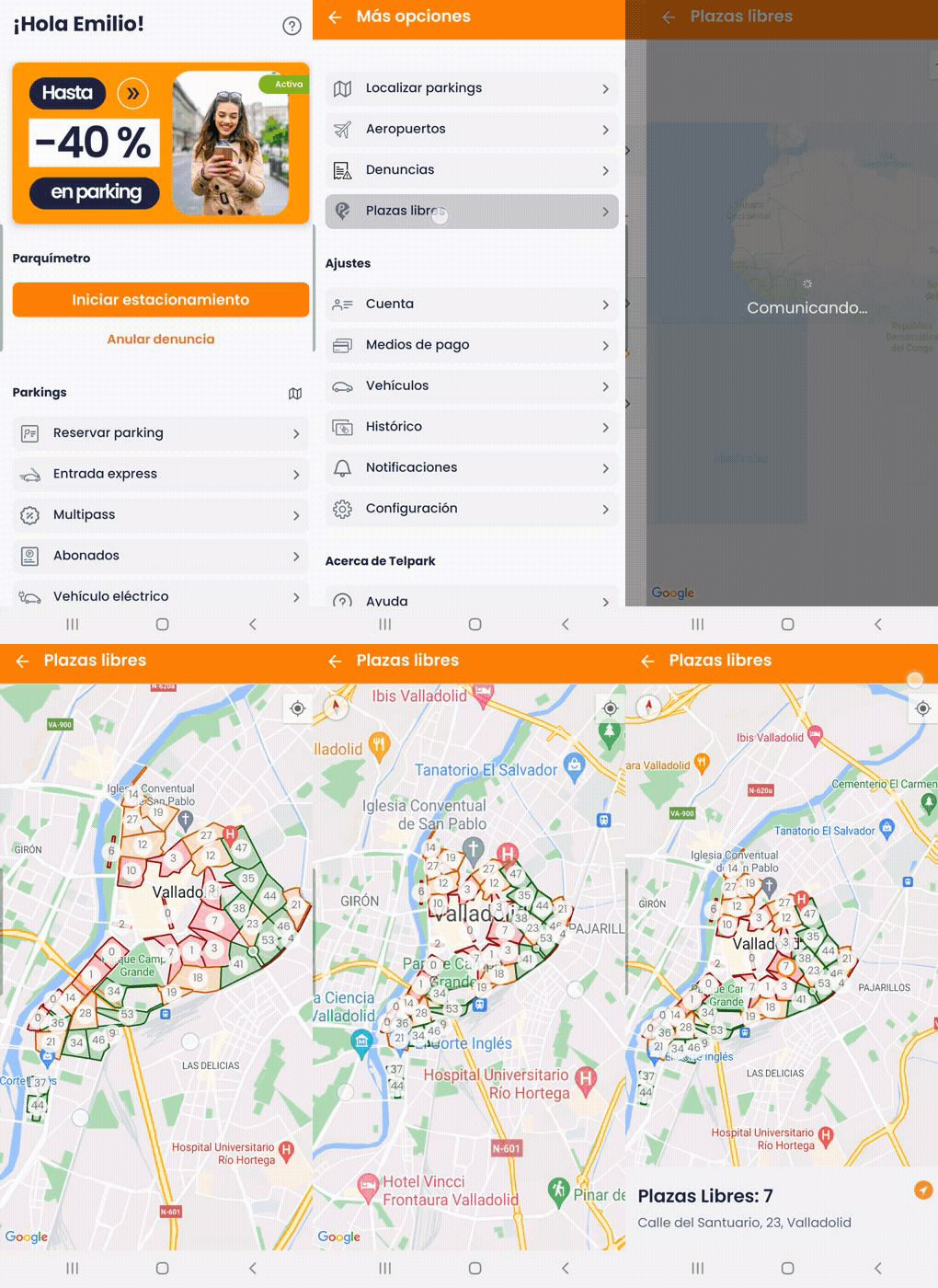
This functionality helps you easily find a space. You can find out in real-time how many spaces are available to park your vehicle. This functionality is currently only available in some cities in Spain.
Remember that it is only valid during the centre’s control hours.
You can access it from More Options – Available Parking Spots.
Still have questions? Don't worry. Contact us, we'll be more than happy to help.
The attendants in regulated car parks have a device which enables them to monitor, by means of the car number plate, any payments made through Telpark.
Still have questions? Don't worry. Contact us, we'll be more than happy to help.
You can activate notifications on the app, pressing More Options – Preferences on the main screen and activating the two warnings.
Then under More Options – Notifications, you can configure notifications by email, push or local phone alarm.
Please be aware that notifications are not available for fines.
Still have questions? Don't worry. Contact us, we'll be more than happy to help.
Only some cities have a telpark service fee which can be up to 10% (including VAT) of the payment total, regardless of the payment method which you use in the app.
You can see the fee total in the app when starting a parking ticket under Duration in grey and on the last ticket summary screen. When your invoice is produced, the additional service charge will be itemised.
Still have questions? Don't worry. Contact us, we'll be more than happy to help.
When you start your parking, once you have selected your vehicle, city, rate and product, telpark will show you your current location on the city map via GPS geolocation. You will be able to see all the details of the area and the neighbourhood from there, allowing you to locate yourself in the area where you parked your car.
The app uses your mobile device's GPS (you have to give telpark permission to access it) to locate your geographical position when you start a new parking space. If you make the payment at the same spot where you have parked, the location will automatically appear in the exact area where you are. In case you move from your vehicle and want to get a new ticket, make sure you manually select the position of your vehicle on the map with the telpark pointer, otherwise the GPS will automatically get your coordinates and the new ticket will be for the area where you are located, and not your vehicle.
Here are some tips to help you with any doubts you may have:
- If you have an active ticket, and you want to extend its duration, you should note that the data you added to this session will remain, including your GPS location. You just need to select how long you want to extend it.
- If you want to start a new parking session and you are far away from your vehicle, make sure you manually select the location of your vehicle on the map:
- Within the map you will find the + and - buttons to zoom in and out to fine-tune your position.
- You will also have the list section, where you can choose your area/neighbourhood directly.
- If you are taking a ticket at a point bordering another area, the app warns you to avoid this type of error. It is important that you read the message so that you agree to take the ticket in the correct zone.
Telpark is not the one who positions you on the map, but it is your mobile device that provides the coordinates to the app. Therefore, when using this function, we must ensure that our GPS is working correctly, and that the data it provides is consistent in order to be able to enjoy this service.
These coordinates, and the accuracy of the GPS depend on many factors: device, buildings, cloud cover, pollution... affect the coordinates it sends, and can have a margin of error of up to 50 metres. So our recommendation is that you always verify that the location is correct before confirming your ticket.
Still have questions? Don't worry. Contact us, we'll be more than happy to help.
With the system to “Stop” or “Finalise” parking time without using the total amount selected, the amount is not saved for another parking session. It actually allows you to pay for the exact time you have parked. We currently offer this functionality at some locations in Spain and also Portugal.
This functionality is currently available in some locations in Spain and also in Portugal.
This functionality works from the minimum parking time established in the Municipal Regulations. The app charges after parking is complete, calculating the actual parking cost.
Still have questions? Don't worry. Contact us, we'll be more than happy to help.
Yes. You just need to select the Extend option on your active parking ticket and indicate the length of time by which you wish to extend your stay.
Remember that you cannot extend a ticket which already has the maximum time permitted for parking in a zone.
Still have questions? Don't worry. Contact us, we'll be more than happy to help.
You can see whether you have an active ticket by going to More Options – History – Tickets. Another way of doing this is by viewing a counter with the remaining time in the Parking Meter section.
Still have questions? Don't worry. Contact us, we'll be more than happy to help.
To create a parking session, go to Parking Meter, click on Make Payment and enter all the details (Vehicle, City, Price, etc.). You just need to confirm payment to complete the parking ticket.
Still have questions? Don't worry. Contact us, we'll be more than happy to help.
Starting a parking space at the meter with telpark is now even easier, faster and more intuitive than ever.
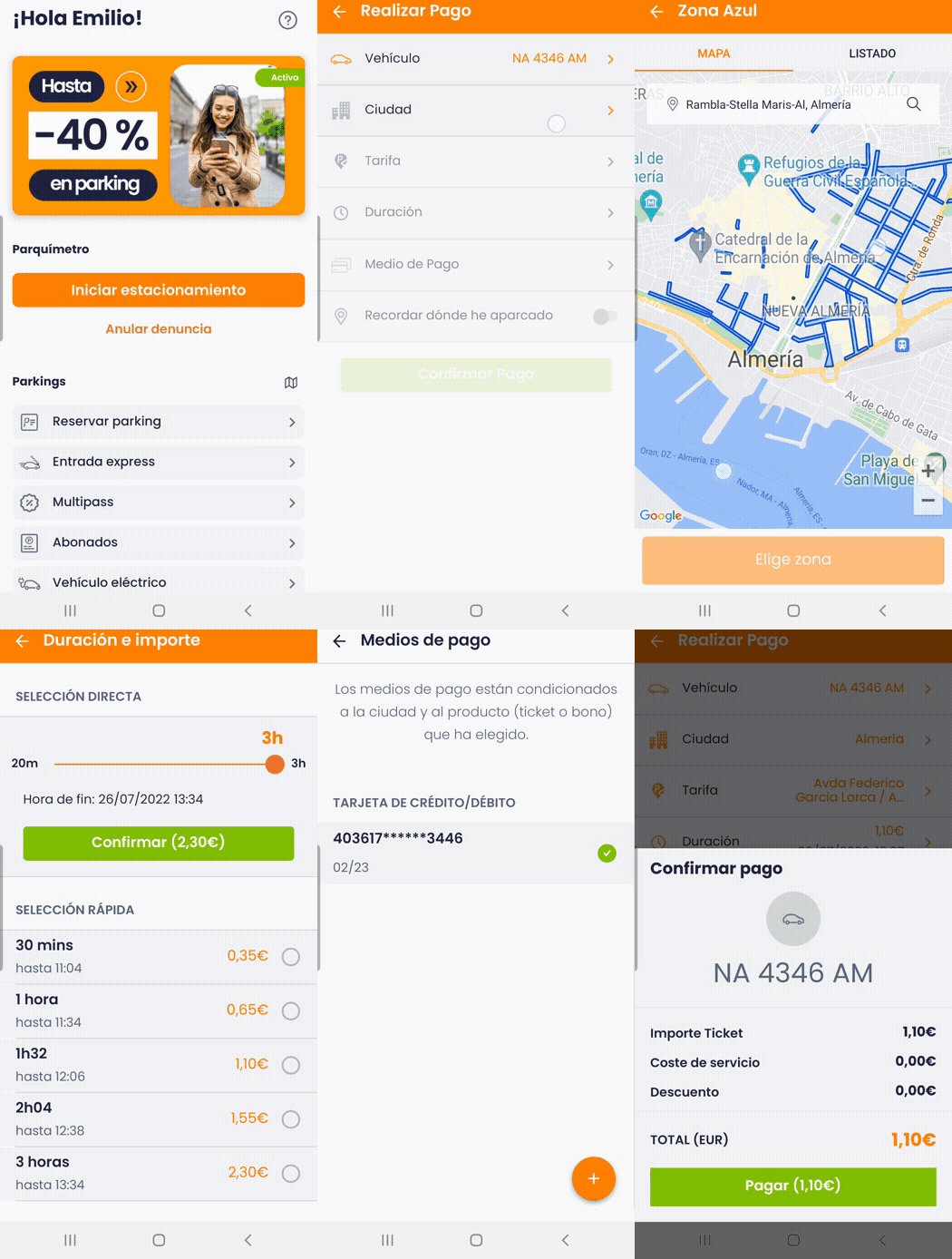
When you open the app and tap on "Start parking", the app geolocates you to the specific spot where you are to make it more convenient to start your parking. However, you can still do it manually by moving your finger on the screen to the street/zone you want, or by using the search engine.
Once you select where you want to park, you will see one or more rates depending on the city you are in. Select the rate you need. Click on the vehicle you want to park with and on the next screen select the time you need in 2, 3 or 5 minute periods.
The telpark parking meter recalculates the price to be paid according to your choice of time (indicating the end time) and the rate set by the relevant local council. Continue to select the method of payment and confirm.
You will then see a message confirming that the ticket has been issued successfully. On the main screen of the app you will see the active sessions you have.
A more dynamic and intuitive design to save you time and make parking easier.
Still have questions? Don't worry. Contact us, we'll be more than happy to help.