
Payments and receipts
Don’t worry! Contact us and explain in detail which are the supporting documents that you cannot seeand we will help you as soon as possible.
Still have questions? Don't worry. Contact us, we'll be more than happy to help.
No. At this time, deletion of the payment history is not possible.
Still have questions? Don't worry. Contact us, we'll be more than happy to help.
On a mobile device
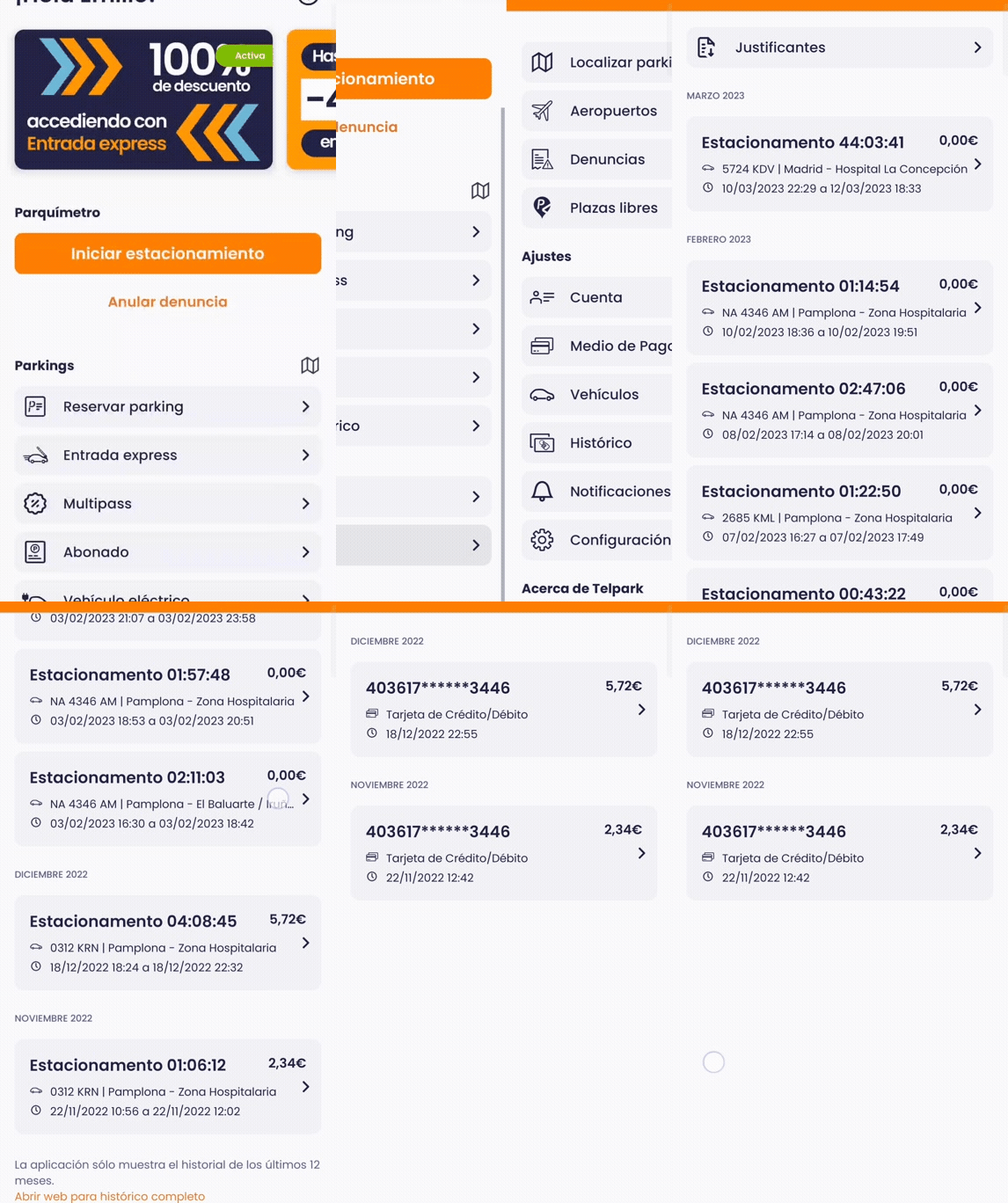
You can access tickets on the app, by going to More Options – History and then Payments, where, by clicking on the payment you want, you will have access to and be able to download the corresponding receipts.
On a computer
You can find and download all your tickets through the website under the option History – Invoices, once you have started a session on the web app.
Still have questions? Don't worry. Contact us, we'll be more than happy to help.
We have detected that some users cannot easily enter their payment method. Don't worry, because our technicians are working to solve this problem as quickly as possible.
Until the situation is fully resolved, we recommend that you try to enter your credit card again, both in the app and on the website. Delete the current payment method and insert the new credit card, do not edit.
So that you don't have any problems, don't forget that in the event that this payment method is not available (either for reasons of your own or for reasons beyond the system's control), the Municipal Ordinance indicates that it is the user's responsibility to make the payment by any of the other available methods (parking meters).
Still have questions? Don't worry. Contact us, we'll be more than happy to help.
Yes, you can have as many bank cards as you want, use them to pay for parking meters, a Multipass or a subscription, or link them to different vehicles with Express Entry.
Still have questions? Don't worry. Contact us, we'll be more than happy to help.
What is PSD2?
This is a new European payment regulation that allows banks to establish processes and controls, both in terms of access to online banking accounts and payments made from these accounts (whether by transfer, card or any other means of payment), with the aim of reinforcing the security of online purchases, thus allowing for greater control over payment authorisations.
A ‘strong customer authentication (SCA)’ is applied, through buyer verification and payment authorisation. This system requires the user to combine at least two independent elements to verify their identity. These can be one of the user’s devices, such as a smartphone; a code that only the customer knows, such as a PIN or password; Or a biometric parameter, such as your fingerprint, your voice, your facial features or your iris.
What should you take into account when making a payment with a bank card at telpark?
- When you choose to pay by bank card, you must select the credit card associated with your telpark account and complete the order as always.
- Once you complete the order, we will send the payment request to be processed.
- Once the request has been processed, you will receive a message from your bank on your mobile phone, with an authorisation code or password, which you must enter correctly for the payment to be validated. The authorisation method may vary according to the bank issuing the card.
Links to banks in Spain and information on the online payment authorisation:
Still have questions? Don't worry. Contact us, we'll be more than happy to help.
Don’t worry! Contact us and tell us the number plate linked to telpark, along with the bank statement where this charge appears, and we will help identify the problem.
Still have questions? Don't worry. Contact us, we'll be more than happy to help.
Don’t worry! Contact us and tell us the registration number which you registered with telpark, together with a copy of the bank statement showing this charge and we will help you find out what has happened.
Still have questions? Don't worry. Contact us, we'll be more than happy to help.
It is normal for a charge to be shown at the stage when a PayPal account is added. This is only for validation purposes, in other words, the amount will not be charged.
PayPal
For validation purposes, when you add your PayPal account, you will be shown a charge of €0.01. This charge is only temporary, the amount will be returned once the account is confirmed.
Apple Pay
For validation purposes, when you link your Apple Pay account, you will be charged €0.01. This is a temporary charge and will be refunded once your account is confirmed, within 48 hours. This charge is only temporary, the value will be refunded once the account is confirmed, within a maximum of 48 hours.
Still have questions? Don't worry. Contact us, we'll be more than happy to help.
If you don’t yet have a payment method added to your account, you must add one so that you can make payments for parking.
· Credit card (Visa/Mastercard/American Express(Amex))
To add a new credit card, go to More Options – Payment methods, then press the add button (“+”) and choose the Credit/Debit Card option. You will just need to add the requested details and confirm.
· PayPal
To link your PayPal account to the application, you must go to More Options – Payment methods, then press the add button (“+”) and choose the PayPal option. You will just need to enter your account details in PayPal.
· Apple Pay
To link the Apple Pay method, go to More options - Payment methods. You just need to press the add button (“+”) and enter your Apple Pay account details.
Still have questions? Don't worry. Contact us, we'll be more than happy to help.